
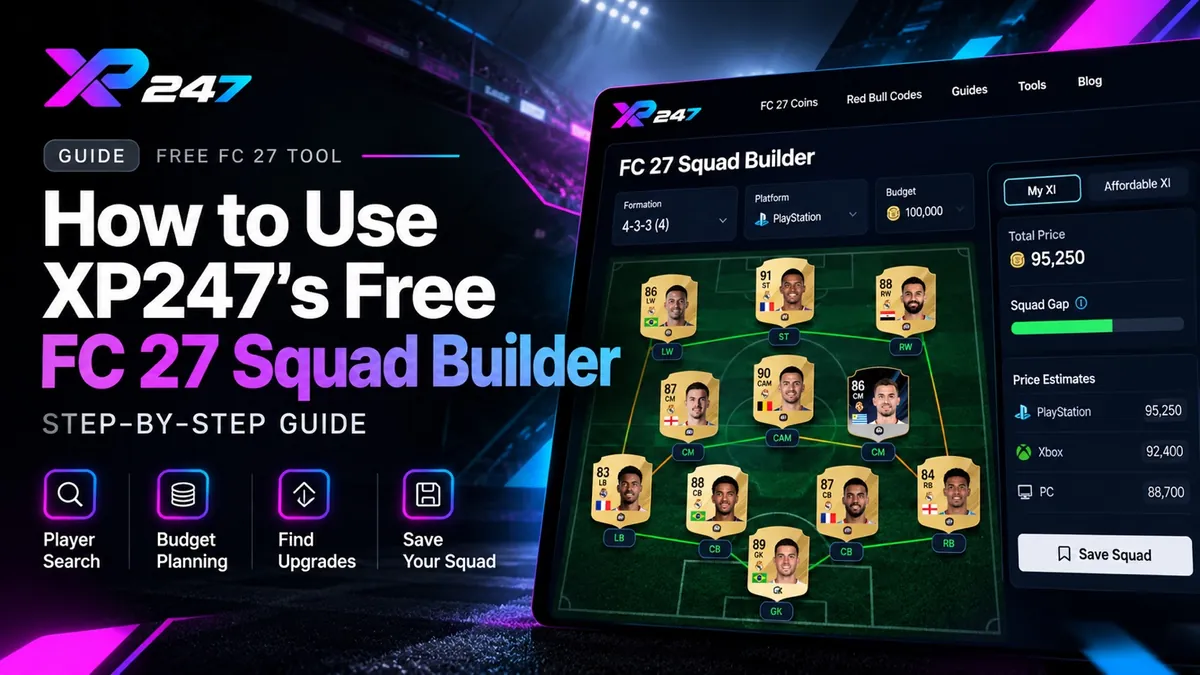
What is XP247's FC 27 Squad Builder?
XP247's free FC 27 Squad Builder is a visual Ultimate Team planner. It lets you place player cards on an eleven-position pitch, work out how many Coins you would need for the players you do not own, and compare a realistic budget against the squad you eventually want.
You can use it in a mobile browser or on desktop without signing in. It is not an EA app, does not ask for your EA credentials and does not change your club in-game. Use the planner to organise ideas before you make any transfers.
Step 1: Choose a formation for your Starting XI
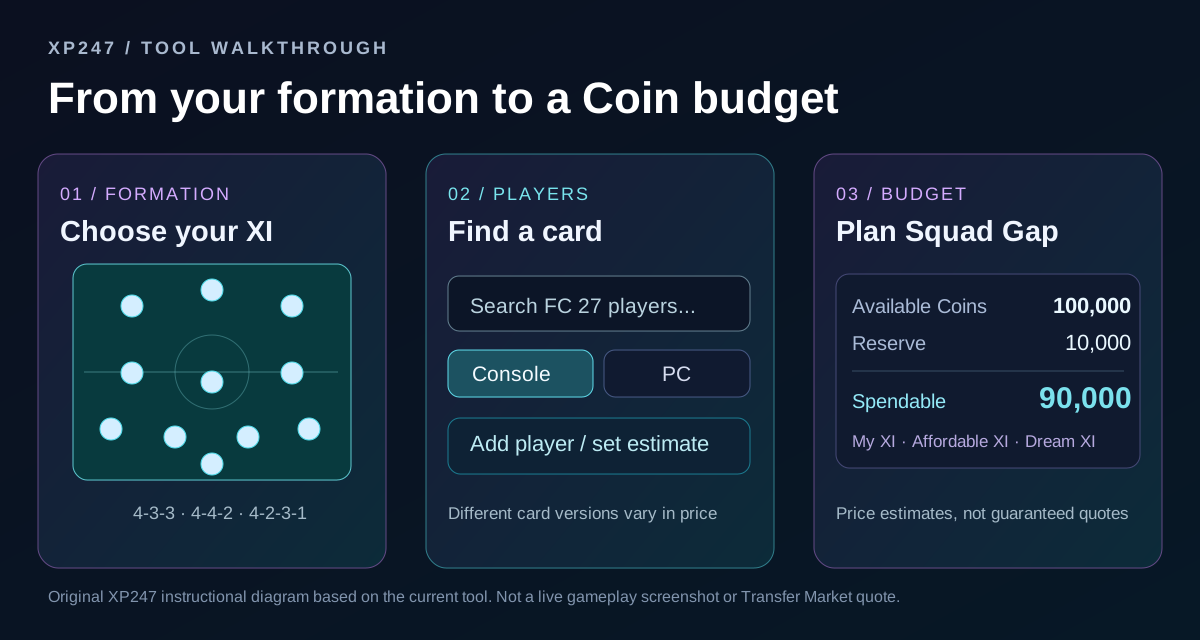
Open the free Squad Builder and start with the formation selector. The current version offers 4-3-3, 4-4-2 and 4-2-3-1. The pitch shows eleven selectable positions, so choose a layout that fits the players you want to use.
If you change formation after filling positions, double-check who ended up in each slot. The builder is a budget and formation planner, not a chemistry optimiser, and it will not automatically find the perfect tactical roles for every card.
Step 2: Search FC 27 player cards and choose the correct version
Tap or click an empty position on the pitch, then use Find a card to search by player name. Review the returned card carefully before pressing Add. Special versions can have different ratings and prices from the standard Gold item, so do not assume every search result represents the same item.
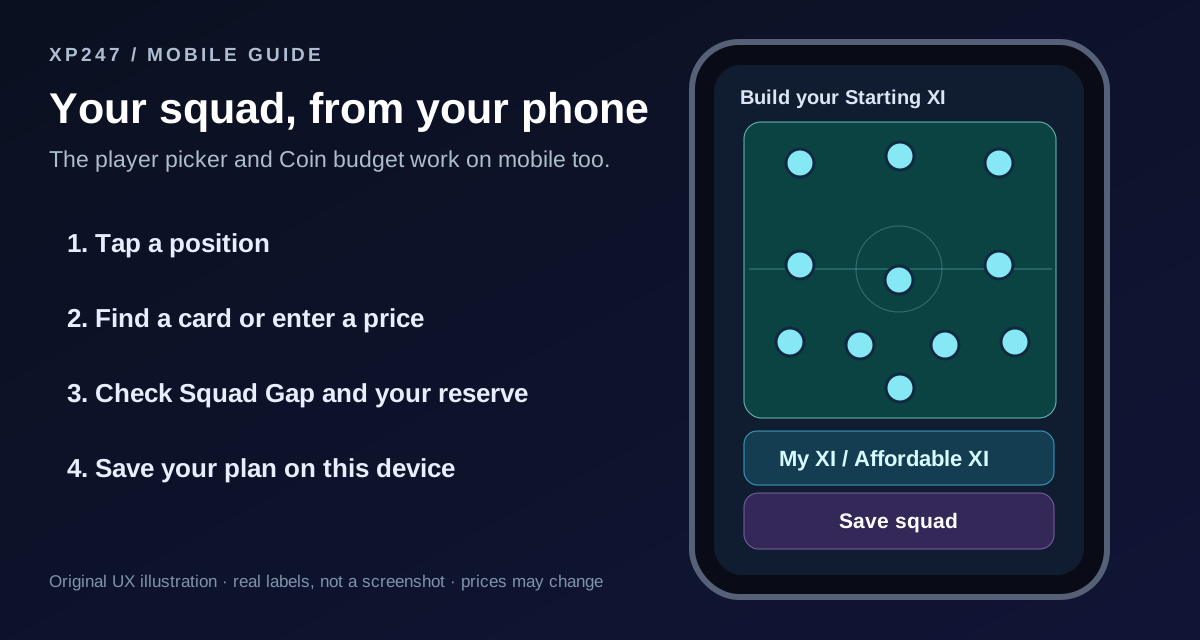
On mobile, the player editor opens in a compact panel. Select the card, tap Add, and the selected player should appear on your XI when the panel closes. You can also use Enter manually to provide a name and your own Coin estimate.
A missing price does not mean the player is free. If a card has no observed market quote, enter a sensible manual estimate and check the transfer market in-game before you act on it.
Step 3: Switch between Console and PC estimates
The card picker has two market options: Console (PlayStation/Xbox) and PC. Choose the market that matches your FC 27 club before comparing player costs. PC prices can differ from Console prices.
Displayed card values are independently observed estimates, not guaranteed live or executable Transfer Market prices. Observations may be delayed or unavailable. When you switch markets, recheck prices and manually entered amounts instead of assuming the same Coin value applies on both platforms.
Step 4: Mark cards you already own
Not every card in your dream team needs to be bought again. When you already have a player, including an untradeable version, mark that position as owned. The card stays in the lineup but counts as zero additional Coins needed for the rest of your plan.
This matters when comparing two squads: an expensive player already in your club might be the best starting point, while a cheaper-looking replacement still costs new Coins.
Step 5: Add a Coin budget and reserve
Enter how many Coins you currently have and how much you want to keep aside. Squad Gap uses the spendable remainder to estimate which planned upgrades fit your budget.
For example, suppose you have 100,000 Coins and hold back a 10,000-Coin reserve. That leaves 90,000 Coins for upgrades. If two unowned cards are estimated at 25,000 and 70,000 Coins, you are 5,000 Coins short of buying both. You could afford the smaller upgrade now and revisit the second later.
The numbers above are illustrative, not current player prices. Do your own in-game price check before buying cards, and remember that observed values can move.
Step 6: Compare My XI, Affordable XI and Dream XI
The three pitch views help you separate the team you own from the one you could afford and the one you eventually want. My XI focuses on cards marked as owned. Affordable XI shows the plan within your current spendable Coins, while Dream XI shows the full selected target.
Squad Gap gives a practical view of what is still needed to reach your target and how your reserved Coins affect the shortfall. It is a planning aid, not an automated Chemistry calculation or a prediction of future Transfer Market prices.
If the affordable view looks much smaller than your dream plan, start with the single position where an upgrade will help most rather than spending your whole balance immediately.
Step 7: Save a squad or share the budget
Give the plan a name and choose Save squad. XP247 keeps up to five recent squad plans in that browser on that device. They are stored locally, not attached to your XP247 account, so switching phones or clearing site data can remove them.
You can copy a shareable numeric budget plan or use Copy full squad summary for your own notes. Standard share links are designed around formation and budget numbers rather than player names, so check what the link includes before sending it to someone else.
A useful approach is to save one realistic current team and one more ambitious target. You can then adjust estimated prices, track your Coin shortfall and compare the versions without rebuilding everything each time.
Quick answers before you start
Ready to build your own XI? Open XP247's free Squad Builder from the link below, follow the steps above and keep your planned upgrades within your Coins. Prices shown by the tool are estimates, not promises of availability.
- Is the Squad Builder free? Yes. No payment or EA login is required.
- Does it automatically buy players or Coins? No. It only helps you plan.
- Does it calculate squad Chemistry or ratings? No. Formation and Coin budgeting are its focus.
- Are Console and PC prices the same? Not necessarily. Choose the correct market and verify in-game.
- Can you use it on iPhone? Yes. The pitch, card picker and budget controls are mobile-friendly.
- Can you save more than five squads? The current tool keeps up to five recent plans locally on each browser.
Build your squad as you follow along.
This walkthrough covers XP247's own Squad Builder. Open the live tool below to try the formations, player search and Coin budget features yourself. Card prices are estimates and may change.
This website is not endorsed by or affiliated with EA or its licensors.
See current PlayStation, Xbox and PC availability before you order.